
Serve RoxyAPI widgets entirely from your own domain with one PHP file: the widget, the city search and every reading load from your site, so visitors never wait on another host.
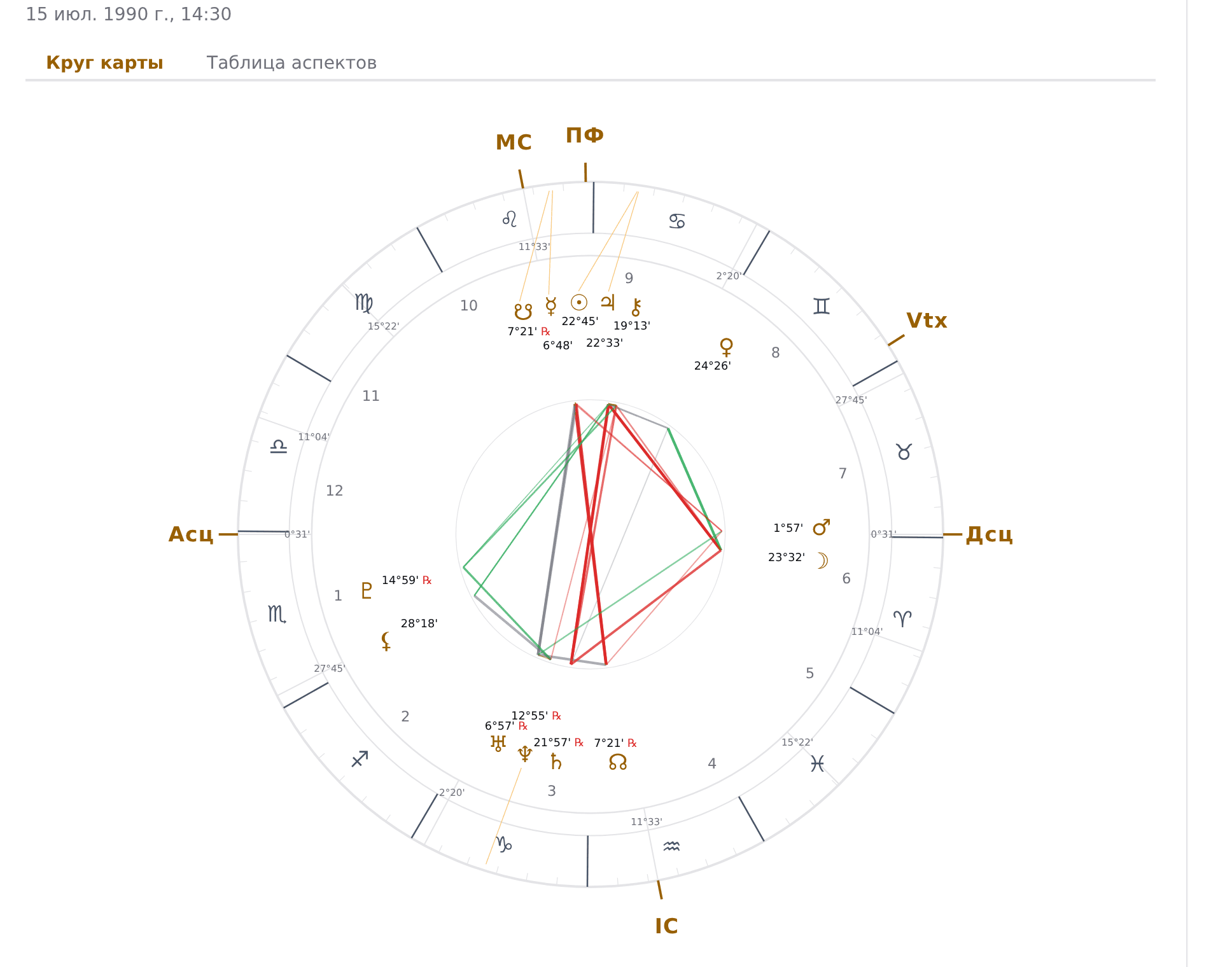
Copy one file, paste one key, paste one snippet. No plugin, no database, no server settings and no build step. New widgets and new widget releases arrive on their own.
- A website on PHP 7.4 or newer. Any shared hosting or server works.
- A RoxyAPI plan. Plans are on the pricing page.
- A way to put files on the site: the file manager in your hosting panel, or SFTP.
Open API keys in your account and click New key. Choose Publishable and Live. Under Allowed origins type your domain, and on a second line the same domain with www. in front. Click Create key and copy the key that starts with pk_.
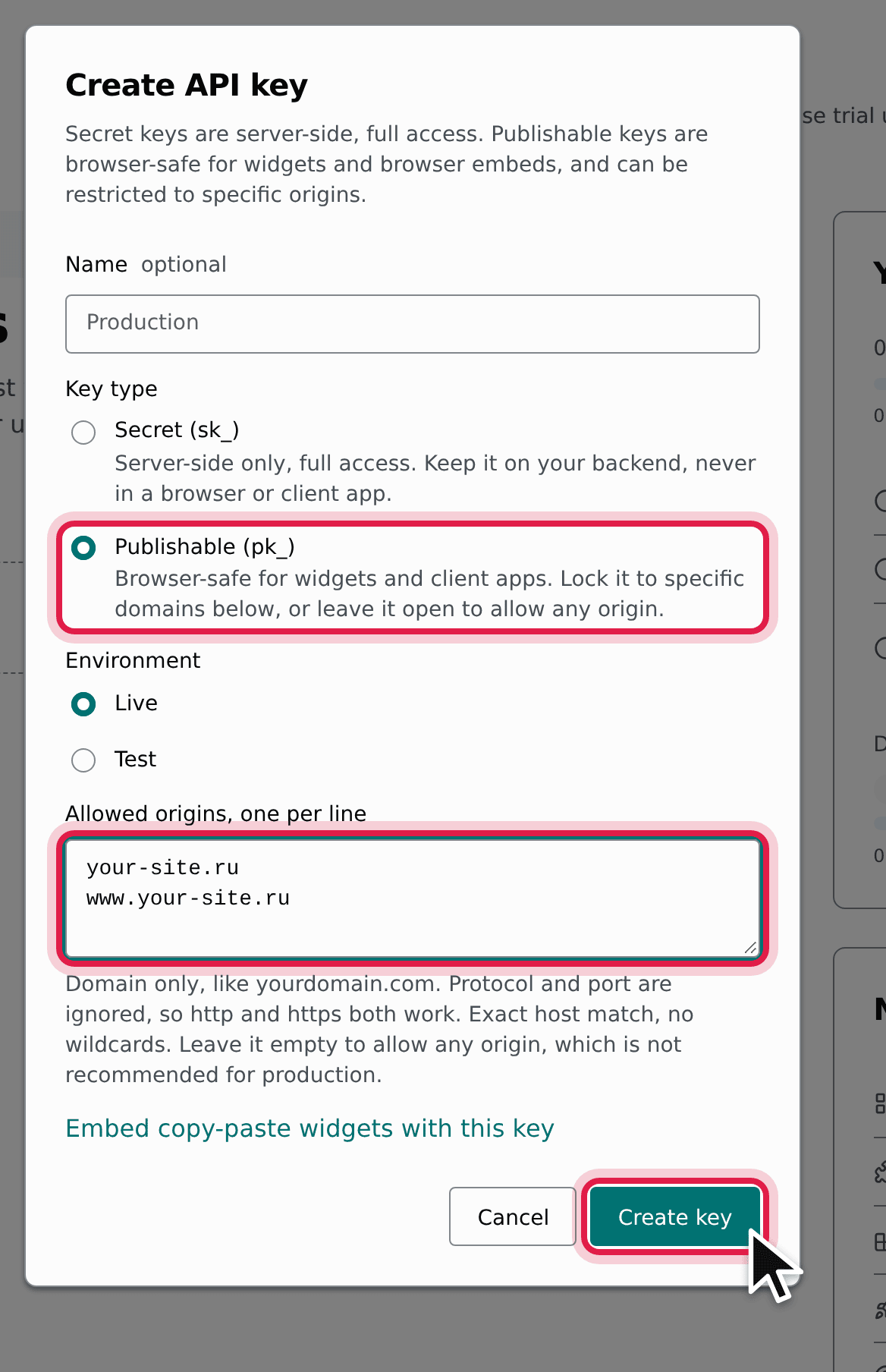
A publishable key only answers for the domains you listed, so it is safe in a file on your site.
Open roxy.php and save the page as roxy.php (Ctrl+S, or Cmd+S on a Mac). Open it in any text editor. On the line that starts with $ROXY_KEY, paste your key between the two quotes, then save.

Open the file manager in your hosting panel and go to the folder that holds your site, the one with index.php in it. It is usually called public_html, www, htdocs or httpdocs, or carries your domain name. Upload roxy.php there, next to index.php. Over SFTP it is the same folder.
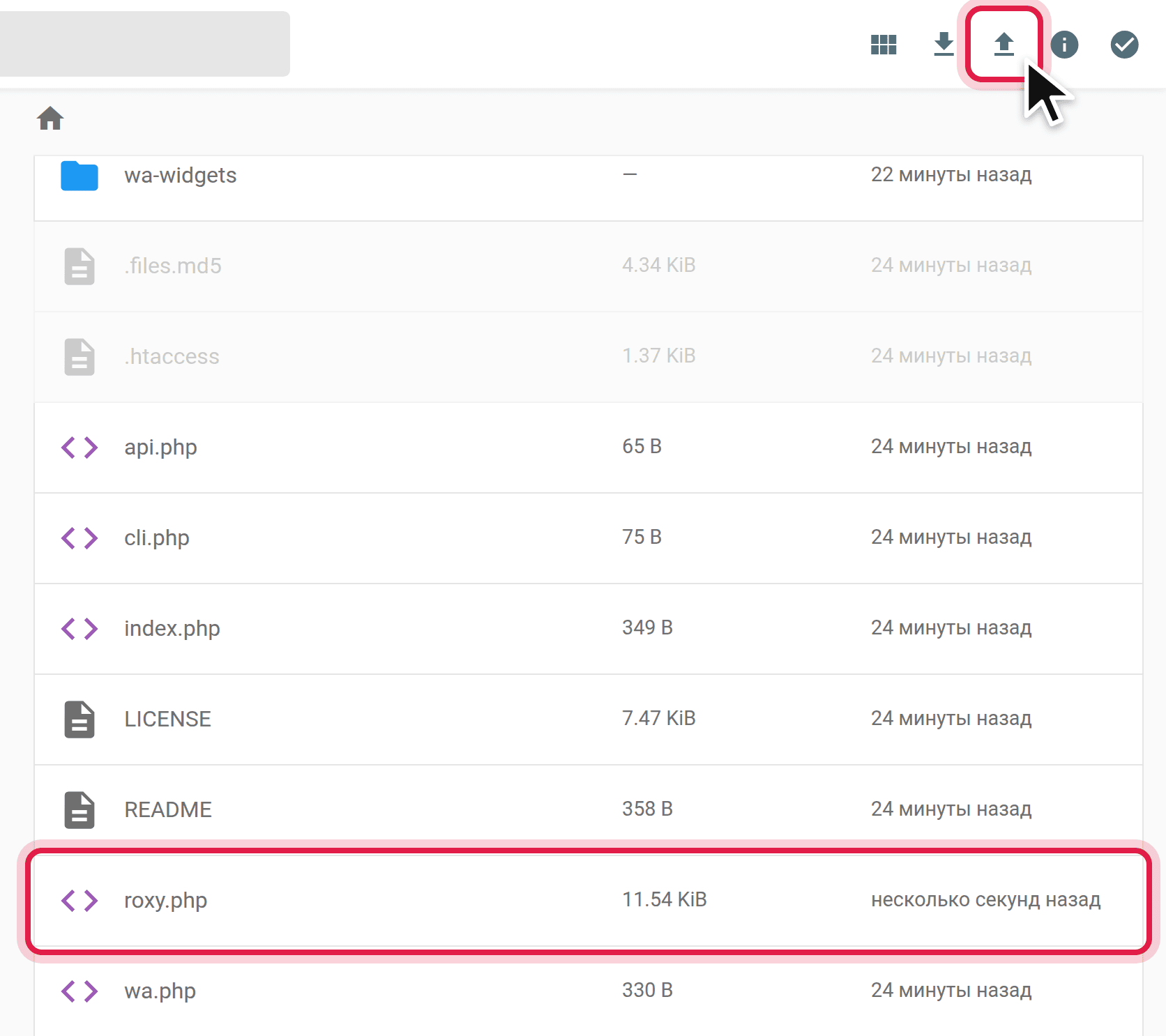
That is the whole installation. Nothing to register and nothing to configure on the server.
In your browser open https://your-site.com/roxy.php?check=XXXXXX, with your own domain and, in place of XXXXXX, the last six characters of your key. Only someone holding the key sees the report. Every line should be green.
The first visit also downloads the widgets for you, so there is nothing else to download. Refresh your file manager: a new roxy folder now sits next to roxy.php, holding cdn and schemas. Leave it there. The snippet in step 5 loads the widgets from it, and new releases land in it on their own.
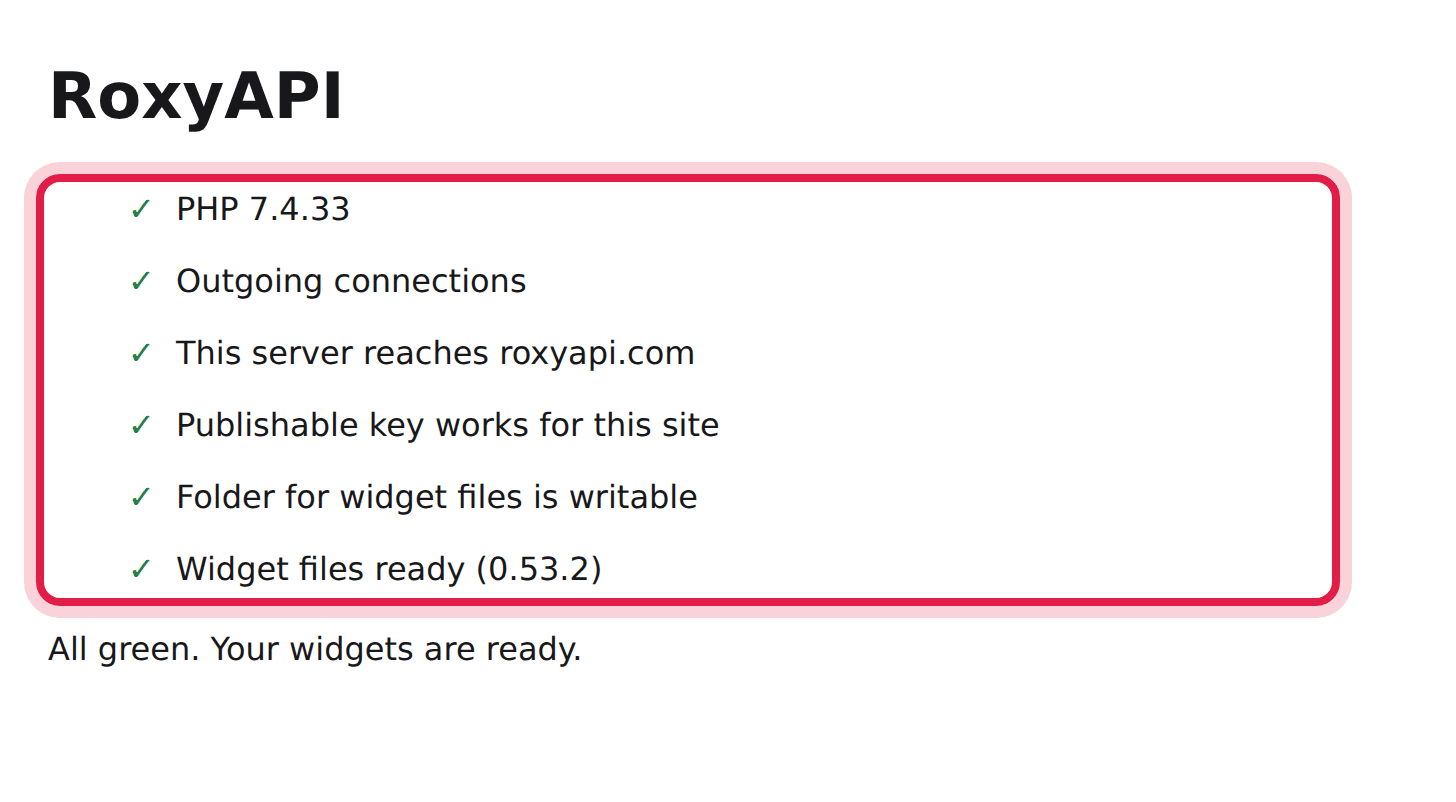
A red line says what to fix right under it. If Widget files ready stays red, put the files there by hand. If you see a page of code starting with <?php instead, read I see code instead of the check page.
Paste these three lines wherever your site accepts HTML: a page editor in its HTML mode, or the theme template. Paste them as they are, on any page of the same site: each path starts with /, so it points at roxy.php and the roxy folder in your site folder from step 3. Step by step guides for popular site builders and shop platforms are in the RoxyAPI docs.
<script src="/roxy/cdn/roxy-ui.js" defer></script>
<script src="/roxy/cdn/locales/ru.js" defer></script>
<roxy-natal-chart submit-url="/roxy.php" hide-sections="hint"></roxy-natal-chart>
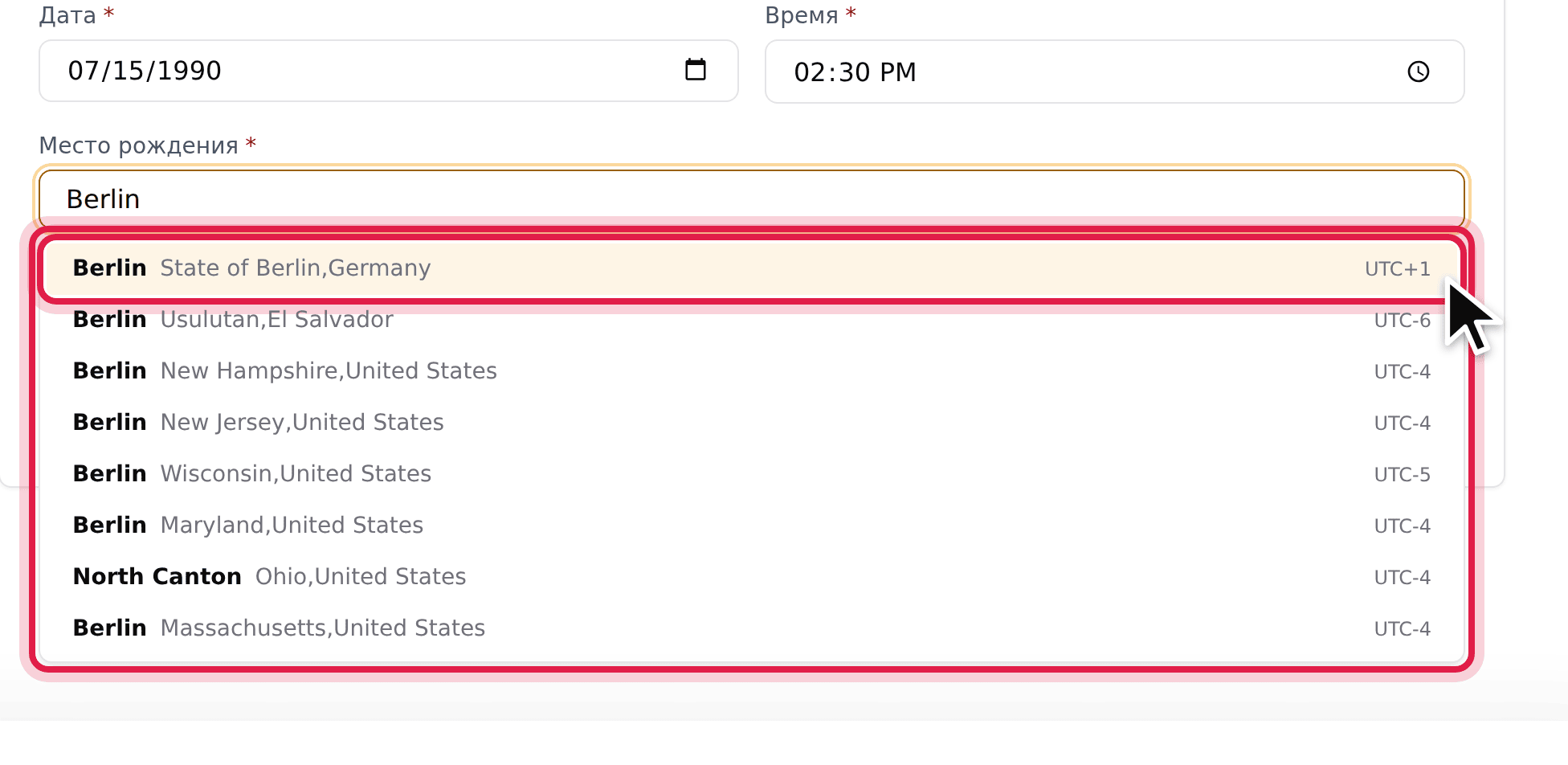
Open the page. Visitors enter a birth date, a time and a city, pick the city from the list, and the chart appears.
Every widget in the widgets gallery works with this file. Copy its tag, and in that tag replace publishable-key="pk_live_YOUR_KEY" with submit-url="/roxy.php". The two <script> lines go on a page once, however many widgets it shows. A transits table next to the chart:
<roxy-transits-table submit-url="/roxy.php" hide-sections="hint"></roxy-transits-table>New widgets and new readings need no change to roxy.php.
Widgets follow the language of the page. The second script line loads the Russian labels; swap ru for de, es, fr, hi, pt or tr, or leave the line out for English. To fix the language whatever the page says, add lang="ru" to the widget tag.
Open the check page and fix any red line. A red Publishable key works for this site means the key is incomplete or your domain is missing from its Allowed origins: add both your domain and the www. version. If every line is green, check that the page and roxy.php are on the same domain, and that the paths in the snippet start with /roxy.php.
Open https://your-site.com/roxy/cdn/roxy-ui.js in the browser. If it is not found, open the check page once, which downloads the widget files, and confirm the last line is green.
If the check page stays red on Widget files ready while the lines above it are green, put the files there by hand:
- On the latest RoxyAPI UI release, under Assets, download
roxyapi-ui-{version}.tgz. Not thereactorvuefile. - Unpack it on your computer. Inside, open
package, thendist. - In your file manager, create a folder named
roxynext toroxy.php, in your site folder from step 3. - Upload the
cdnandschemasfolders fromdistintoroxy.
You now have roxy/cdn/roxy-ui.js and roxy/schemas/ beside roxy.php. Open the check page again: the last line turns green.
Keep the ru.js line in the snippet and set the page language to Russian, or add lang="ru" to the widget tag.
Each red line says what to do under it. This server reaches roxyapi.com in red means your hosting blocks outgoing connections; ask hosting support to allow outgoing HTTPS. Folder for widget files is writable in red means PHP may not create the roxy folder; set the permissions of the site folder to 755 in the file manager.
Your widgets work. A yellow PHP line means a newer PHP release with security fixes is out, or your PHP version no longer receives them. Send that line to your hosting support and ask them to update PHP, or to confirm your PHP build already carries the fixes. Many panels also let you switch to the newest PHP version yourself.
Put roxy.php in that subfolder and add the folder to every path in the snippet: for a site at your-site.com/shop/, write /shop/roxy/cdn/roxy-ui.js, /shop/roxy/cdn/locales/ru.js and /shop/roxy.php.
Your server runs only its own PHP entry file and shows other PHP files as text. Ask your hosting support or developer to let roxy.php run like index.php. On nginx that is one location block beside the one that serves index.php:
location = /roxy.php {
    include fastcgi_params;
    fastcgi_param SCRIPT_FILENAME $document_root/roxy.php;
    fastcgi_pass 127.0.0.1:9000;
}
Use the same fastcgi_pass value as the index.php block, then open the check page again.
On their own. Every few hours roxy.php checks for a new widget release and, when there is one, downloads it into the roxy folder. The check page shows the version in use. There is nothing to update by hand.
Delete the snippet from your pages, then delete roxy.php and the roxy folder from the server.
- Every widget, live: roxyapi.com/widgets
- Widget documentation: roxyapi.com/docs/widgets
- Component library: github.com/RoxyAPI/ui
- Plans and keys: roxyapi.com/pricing
- For AI coding agents: AGENTS.md
MIT. See LICENSE.